
The order matters. Set up your teams and schedules before you invite anyone, so that when people sign in for the first time they see the dates they’re serving.
Sign up
Have these ready:
- Your church’s name.
- A web address for your church, like
gracechapel.thesaferchurch.app. Your team signs in there, and the first part is also your church code, which people type when they sign in on the phone app. Short and easy to say beats complete. - The email address you want to use as the church’s first admin. Use one that isn’t already on The Safer Church. Each email can belong to only one account.
- Your time zone. Reminder texts go out by it, and it can’t be changed in the app yet.
- How many people are on your safety team, and a card or US bank account.
On the Pricing page, set your team size, pick the amount you can give, and choose monthly or annual. Then fill in Set up your church below the prices and select Continue to secure payment. Checkout is handled by Stripe, and no card or bank details touch our servers.
When you finish checkout, you come back to our site while your church is set up. That usually takes under two minutes, and the page changes to Your church is live. You don’t need to wait on it: your invitation comes by email.
Accept your invitation
A few minutes after checkout, you get an email from noreply@thesaferchurch.app with the subject “You’re invited to The Safer Church”. It’s the same invitation your team will get later. Yours makes you the church’s admin.
- Select Create Your Account in the email.
- If your church requires a member agreement, you read and accept it first. (A brand-new church doesn’t have one yet.)
- Enter your first and last name and your mobile phone. The phone is required: it’s where sign-in codes go once two-factor sign-in is on.
- Choose a password of at least 10 characters. Passwords that have shown up in known data breaches are turned away, so pick something new.
- Tick Safety text alerts if you want reminder texts before you serve.
- Select Create Account, then Get Started.
Bookmark your web address. That’s where you and your team sign in.
The link lasts 7 days. You’re the only admin so far, so nobody in your church can send you a new one. Email support@thesaferchurch.com with your church’s web address and we’ll send a fresh link. Not seeing the email at all? Check your spam folder first.
Find your way around
Your church starts empty: no sample teams, people or reports. The menu on the left has:
| Menu item | What’s there |
|---|---|
| Situation Room | Home. Bulletins, persons of interest (POIs) and sitreps (post-service reports). |
| My Schedule | Your calendar of dates and rosters. Admins and directors also get the Manage Schedules tab. |
| Special Events | One-off events outside the regular rotation. |
| Messages | Messages to your teams and people. |
| Teams | Every team and who’s on it. |
| Admin | Tabs for Users, Invitations, Settings, Audit Log and Support. |
If you didn’t tick text alerts when you signed up, a box titled Shift reminders are here asks once. Choose Enable text reminders to get a text the evening before you serve, or Not now.
Set two things before anyone joins
Go to Admin → Settings.
Turn on two-factor sign-in
The Admin page shows a red banner while it’s off. Tick require_2fa. From then on, every sign-in needs a 6-digit code texted to the person’s phone, and new people confirm their phone when they create their account. Your own next sign-in will text a code to the phone you entered in step 2. Turn it on before you invite anyone, and leave it on.
Add your member agreement, if you have one
If your church asks volunteers to agree to a policy or covenant, paste its text into the Member Agreement card and tick Require agreement acknowledgment during signup, then Save. New people must read to the end and accept it before they can create their account. People who signed up before you turned it on never see it, so do this first.
The rest can stay as they are
| Setting | What it does |
|---|---|
| How far ahead volunteers can see the schedule | How many weeks of dates are kept on the calendar. Default 26 weeks. |
sitrep_allowed_roles | Which roles may file a sitrep. See roles for who can file in practice. |
invitation_expiry_hours | How long invitation links last. Default 168 hours (7 days). |
session_duration_days | How long someone stays signed in. |
sms_rate_limit_per_user_per_day | A safety cap on texts per person per day. |
Your church’s name, web address and time zone come from signup and can’t be edited in the app yet. If one is wrong, email support@thesaferchurch.com.
Create your teams
Go to Teams → Create Team, give it a name, and save. Admins and directors can create teams.
A schedule belongs to one team, and everyone on that team is on the roster for every date. So build teams around the people who serve the same rotation, for example Sunday 9 AM, Sunday 11 AM and Wednesday Night. Someone who serves more than one rotation goes on more than one team.
On a team’s page you can Edit Name, Add Member (for people who already have an account) and, per person, Promote to Lead, Mark Inactive or Remove. Archive Team can’t be undone.
Build your schedules
Go to My Schedule → Manage Schedules → Create Schedule. Admins and directors can do this.
- Team and Name, for example Sunday 9 AM service.
- Recurrence Pattern: Every N Weeks (every week, every other week) or Monthly Nth Weekday (say, the first and third Sunday).
- Day of Week, Start Date, and the start and end time your team is on duty.
The dates show up right away and stay filled in for the weeks ahead. People who join the team later appear on every roster automatically, so you don’t rebuild anything as your team grows.
- Anyone who can’t serve a date opens it and selects Decline this date.
- If a service is called off, a director or admin selects Cancel this date.
- For a one-off (Easter, a concert, a funeral), use Special Events → Create Event instead.
Reminder texts go out the evening before each date to everyone on the roster who turned on text alerts.
Invite your people
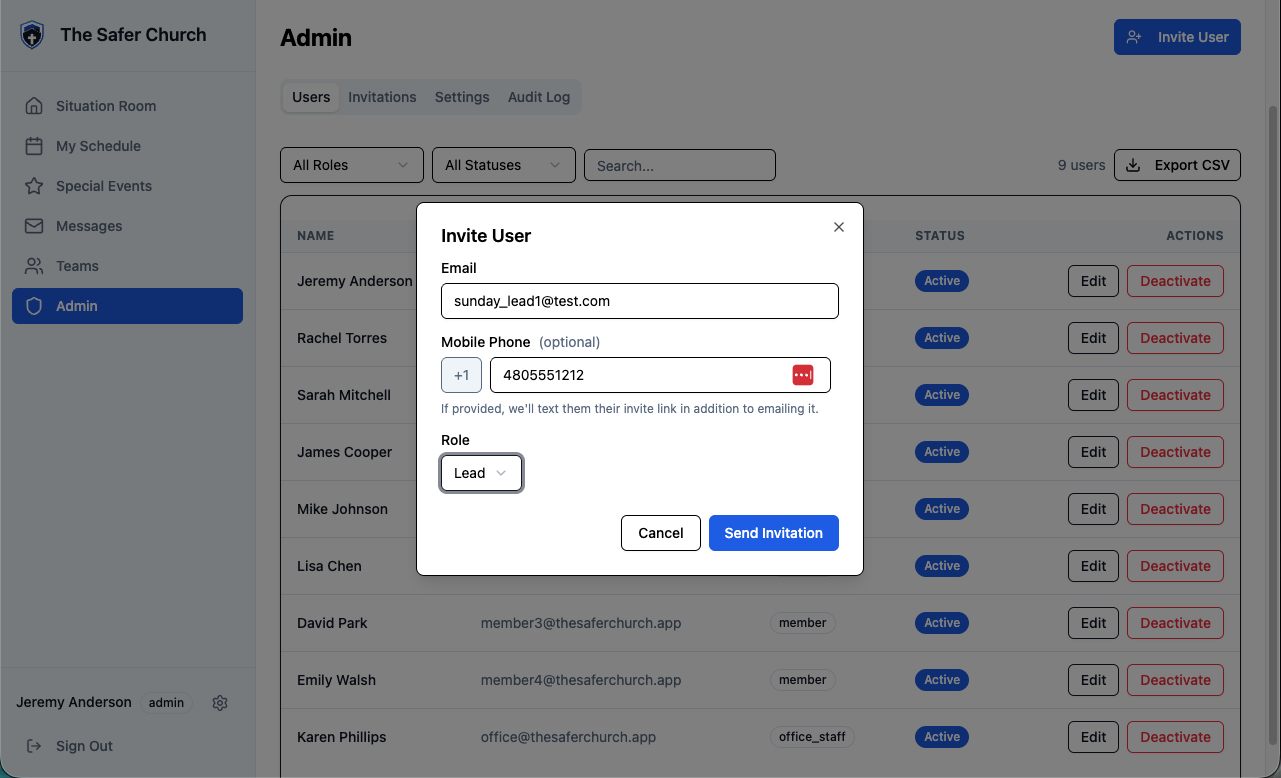
Go to Admin → Invite User (the button at top right). Only admins can invite.
- Email, required.
- Mobile Phone, optional. Add it and the sign-up link is texted as well as emailed.
- Role. Most people are Member. See which role to give whom.
- Teams. Tick every team they serve on. They join when they finish creating their account.
Then select Send Invitation. Invitations go one at a time for now.
What they get: an email with the subject “You’re invited to The Safer Church”, a Create Your Account button and your church code. If you added their phone, they also get a text with the same link, sent in your name. The link lasts 7 days.
Keeping track
- Admin → Invitations opens on Pending: everyone who hasn’t created their account yet. That’s your chase list.
- Resend sends a fresh 7-day link, even after one expires. Revoke cancels a pending invitation, for a typo’d email or the wrong person.
- “Email already registered” means that address already has an account, possibly at another church. Use a different email for that person, or email support.
Which role to give whom
| Role | Who it’s for | What they can do |
|---|---|---|
| Member | Most of your team | See their schedule and rosters, decline dates, read the Situation Room, get reminder texts. |
| Lead | Whoever runs a team on the day | Everything a member can do, plus file sitreps for their own teams and send messages. |
| Director | Your safety director | Oversees every team: creates teams, schedules and special events, posts bulletins and persons of interest, files sitreps for any team, sends messages, uses the Support tab. Can’t invite people or change settings. |
| Admin | Whoever runs the app for your church | Everything, including invitations, settings, users and billing. |
| Office Staff | Church office folks | Send and read messages and use the Support tab. They don’t serve shifts. |
The sitrep form lets leads pick from their own teams and lets directors and admins pick any team. Give the people who write the report after each service the Lead role and put them on their teams. Separately, Promote to Lead on a team’s page marks who leads that team on its roster.
Roll it out to your team
Most people will sign up faster with a little help in the room. The onboarding kit has what you need: a printable one-pager for every member, a 20-minute team-meeting script, and a cheat-sheet for after rollout.
Next Onboarding kit Member one-pager, team-meeting script and cheat-sheet.Billing
The Billing card is at the top of Admin → Settings. It shows the team size you chose, your amount and your next billing date.
- Change team size: pick your new team size and level, check the new amount, then Save team size.
- Manage billing opens Stripe in a new tab, where you can update your card or bank account, download receipts, or cancel.
- If a payment doesn’t go through, the card says so. Update your payment method in Manage billing.
- Billing questions: billing@thesaferchurch.com.
Getting help
- Admins, directors and office staff: Admin → Support → New request. Choose Support, Bug or Feature request, describe what happened, and attach a screenshot if it helps. Our replies come back in the same conversation.
- Or email support@thesaferchurch.com. A real person reads every message.
- Members and leads should go to you or your tech deputy first.
Words you’ll see
| Word | Means |
|---|---|
| Situation Room | The home screen, with what your team should know right now. |
| Sitrep | Situation report: the short report filed after a service, with who served, what happened and any incidents. |
| POI | Person of interest: someone your team should know to watch for. |
| Bulletin | A notice posted for the whole team. |
| Church code | The first part of your web address. Also called the shortcode. People type it when they sign in on the phone app. |
| Roster | Who’s serving on a given date: everyone on that team, with anyone who declined marked as out. |